Few things are more frustrating than a laptop that takes forever to start, freezes while switching between apps, or struggles to keep up with everyday tasks. Whether you’re working from home, attending online classes, editing videos, or simply browsing the web, a slow laptop can seriously affect your productivity.
The good news? You don’t always need to buy a new laptop. In many cases, poor performance is caused by software issues, outdated hardware, unnecessary background apps, or a lack of regular maintenance. With a few simple changes, you can significantly improve your laptop’s speed and extend its lifespan.
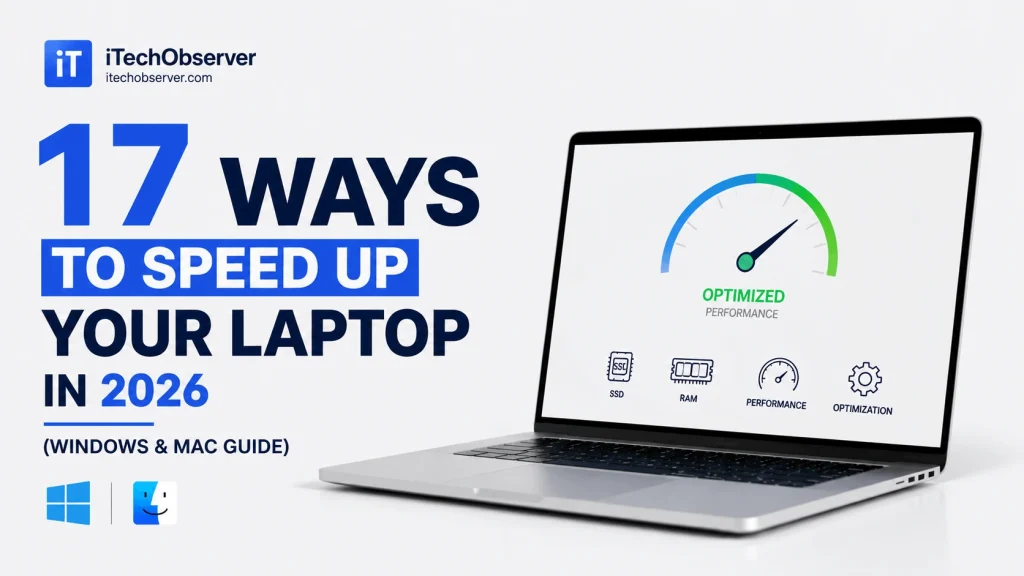
In this comprehensive guide, we’ll walk you through 17 practical ways to speed up your laptop in 2026, covering both Windows and macOS. These tips range from quick software tweaks to hardware upgrades that deliver noticeable performance improvements.
Whether you own a brand-new ultrabook or a five-year-old laptop, these methods will help you get the most out of your device.
Why Do Laptops Slow Down Over Time?
Many people assume that laptops become slower simply because they get older. While age can play a role, it’s rarely the main reason. Most performance problems develop gradually as software accumulates, storage fills up, and hardware struggles to keep up with increasing demands.
Common reasons your laptop slows down include:
- Too many startup programs
- Nearly full storage drives
- Outdated operating systems
- Malware or unwanted software
- Too many browser tabs and extensions
- Aging hard drives
- Insufficient RAM
- Overheating caused by dust buildup
- Background apps consuming CPU and memory
Fortunately, many of these issues can be fixed in just a few minutes.
1. Disable Startup Programs
Every time you turn on your laptop, dozens of applications may launch automatically in the background. Many of these programs aren’t essential and simply consume valuable system resources before you even begin working.
Common startup applications include:
- Discord
- Spotify
- Adobe Creative Cloud
- Microsoft Teams
- Zoom
- Steam
- OneDrive
- Dropbox
On Windows
- Press Ctrl + Shift + Esc
- Open Task Manager
- Click Startup Apps
- Disable unnecessary programs
On macOS
- Open System Settings
- Select General
- Click Login Items
- Remove apps you don’t need at startup
Reducing startup applications can noticeably decrease boot time and improve overall responsiveness.
Pro Tip: Only disable applications you’re familiar with. Leave security software and system services enabled unless you know they’re unnecessary.
2. Free Up Storage Space
A nearly full storage drive is one of the biggest causes of poor performance. Both Windows and macOS require free space for temporary files, virtual memory, updates, and application caching.
Aim to keep at least 20% of your storage capacity free for optimal performance.
Files You Can Safely Remove
- Old downloads
- Duplicate photos
- Temporary files
- Recycle Bin contents
- Browser cache
- Large videos you no longer need
- Unused installation files
Windows Tools
- Storage Sense
- Disk Cleanup
- Settings → Storage
macOS Tools
- About This Mac → Storage
- Optimize Storage
- Empty Trash
- Remove unused applications
Regular storage maintenance helps your laptop run more efficiently and reduces the risk of slowdowns during updates.
3. Uninstall Programs You Never Use
Many laptops come with pre-installed software—often called bloatware—that consumes storage, memory, and processing power without providing much value.
Examples include:
- Trial antivirus software
- Pre-installed games
- Manufacturer utilities
- Old editing software
- Duplicate media players
Removing unnecessary programs frees up disk space and reduces background activity.
Windows
Go to:
Settings → Apps → Installed Apps
Review your installed programs and uninstall anything you no longer use.
macOS
Open the Applications folder and move unused apps to the Trash.
Before uninstalling, double-check that you’re not removing drivers or software required for hardware components like your touchpad or graphics card.
Quick Win: If you haven’t opened an application in the last six months, it’s probably safe to remove.
4. Upgrade from an HDD to an SSD
If your laptop still uses a traditional hard disk drive (HDD), upgrading to a Solid State Drive (SSD) is one of the most effective ways to improve performance.
Unlike HDDs, SSDs have no moving parts, making them significantly faster, quieter, and more reliable.
| Feature | HDD | SSD |
|---|---|---|
| Boot Speed | Slow | Very Fast |
| App Loading | Moderate | Fast |
| Noise | Audible | Silent |
| Durability | Lower | Higher |
| Power Consumption | Higher | Lower |
Benefits of an SSD
- Windows boots in seconds
- Applications launch faster
- Faster file transfers
- Reduced loading times
- Improved multitasking
- Better battery life in many laptops
For older laptops, replacing an HDD with an SSD can make the system feel almost like new.
Expert Tip: A SATA SSD offers a substantial performance boost for most older laptops, while newer systems with NVMe SSDs provide even faster speeds.
5. Upgrade Your RAM
Random Access Memory (RAM) determines how many tasks your laptop can handle simultaneously. If you frequently switch between browser tabs, video calls, office apps, and creative software, upgrading your RAM can greatly improve responsiveness.
Recommended RAM in 2026
| Usage | Recommended RAM |
|---|---|
| Basic browsing | 8GB |
| Office work & multitasking | 16GB |
| Gaming | 16–32GB |
| Video editing | 32GB+ |
| Software development | 16–32GB |
Signs You Need More RAM
- Constant freezing
- Slow multitasking
- Browser tabs reloading
- High memory usage in Task Manager
- Programs crashing unexpectedly
Before purchasing new memory, check whether your laptop allows RAM upgrades. Many modern ultrabooks have memory soldered directly to the motherboard.
6. Update Windows or macOS
Operating system updates do more than add new features—they also improve performance, fix bugs, and patch security vulnerabilities.
Skipping updates for months or even years can leave your laptop running inefficiently.
Windows
Go to:
Settings → Windows Update
Install:
- Feature updates
- Security updates
- Driver updates
- Performance improvements
macOS
Go to:
System Settings → General → Software Update
Install the latest version compatible with your Mac.
Keeping your operating system current ensures better compatibility with modern software and can resolve performance issues caused by outdated system components.
Pro Tip: Restart your laptop after installing updates to allow changes to take effect and clear temporary system processes.
7. Scan for Malware and Adware


Hey there 👋 I’m Awais, the curious mind behind iTech Observer.
I’m a tech blogger who loves diving deep into AI and Cybersecurity, but my real passion is making those topics easy to understand — especially for small business owners trying to grow in a digital world.
Here on iTech Observer, I break down the latest tech trends, tools, and security tips into practical, real-world advice you can actually use. Whether you’re trying to secure your business website, understand how AI can boost productivity, or just want to stay updated on what’s next in tech — you’re in the right place.
I believe technology should empower, not overwhelm.
Let’s explore the innovations that can make your business stronger, smarter, and more secure.