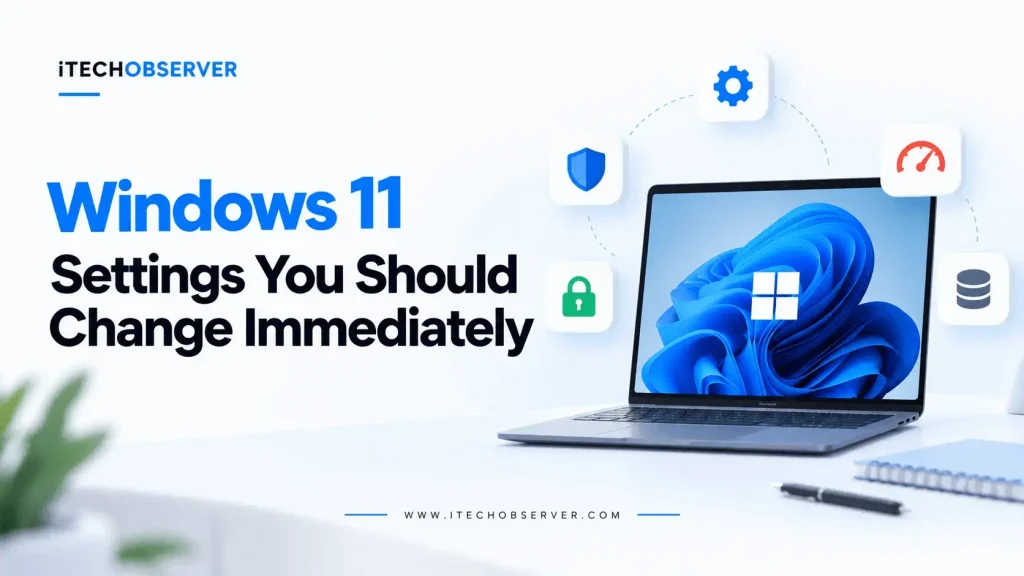
Windows 11 Settings to Change Immediately After Installing It
Just installed Windows 11? Before you start downloading “PC optimizer” apps or following random speed-up tutorials, spend a few minutes getting the basics right.
A fresh Windows installation is the best time to build a clean, secure, and practical setup. That does not mean disabling every Windows service, removing every Microsoft feature, or applying dozens of registry tweaks.
Some settings are genuinely worth changing right away. Others depend on your privacy preferences, hardware, or how you use your PC. And a few are best left alone unless you’re fixing a specific problem.
This guide focuses on the Windows 11 settings that actually matter, with a simple safety label for each recommendation.
Windows 11 Safety Key
RECOMMENDED — Most people should review or enable this.
SAFE TO CHANGE — Low risk and easy to reverse.
OPTIONAL — Useful for some people, unnecessary for others.
CAUTION — A change here can affect security, performance, or functionality.
LEAVE ALONE — Don’t change it unless you know exactly why you’re doing it.
1. Update Windows First
SAFETY: RECOMMENDED
Go to:
Settings → Windows Update
Select Check for updates and install everything important that’s available.
A clean Windows installation may still be missing recent security patches, Microsoft Defender updates, reliability fixes, and hardware compatibility improvements.
While you’re here, also check:
Windows Update → Advanced options → Active hours
Set your active hours around the times you normally use the computer. That reduces the chance of Windows trying to restart at an inconvenient moment.
Don’t disable Windows Update
SAFETY: LEAVE ALONE
If you need to postpone an update, use Microsoft’s built-in pause and scheduling controls.
Permanently disabling Windows Update usually creates more problems than it solves.
2. Make Sure Windows Security Is Working
SAFETY: RECOMMENDED
Go to:
Settings → Privacy & security → Windows Security
Check the main protection areas:
- Virus & threat protection
- Firewall & network protection
- App & browser control
- Device security
If you’re using Microsoft Defender, make sure real-time protection is turned on.
You should also keep Windows Firewall enabled unless you have a specific technical reason to change it.
Don’t turn off security features for tiny performance gains
SAFETY: LEAVE ALONE
Some “optimization” guides recommend disabling Defender, the firewall, or other protections to save resources.
For most people, that trade-off makes little sense.
A slightly lighter background load isn’t worth weakening your PC’s security.
3. Secure Your Windows Account
SAFETY: RECOMMENDED
Go to:
Settings → Accounts → Sign-in options
Set up one of the secure sign-in methods supported by your computer, such as:
- Windows Hello PIN
- Fingerprint recognition
- Facial recognition
- A strong password
This matters most on laptops, but desktop PCs should also have proper sign-in protection.
If someone gets physical access to your computer, your login is one of the first lines of defense.
Check Windows activation too
SAFETY: SAFE TO CHECK
Go to:
Settings → System → Activation
Make sure Windows is activated.
This is especially worth checking after a clean installation, motherboard replacement, or other major hardware change.
4. Decide How Much Microsoft Account Sync You Want
SAFETY: OPTIONAL
Go to:
Settings → Accounts
Windows increasingly ties features such as OneDrive, Windows Backup, Microsoft Store purchases, and cross-device syncing to a Microsoft account.
That can be convenient.
It can also mean more of your Windows experience is connected to Microsoft’s cloud services.
A Microsoft account makes sense if you actively use those features. A local account gives you a more self-contained Windows login.
There isn’t one correct choice for everyone.
Use the account setup that fits the way you actually use your PC.
5. Review Diagnostic and Privacy Settings
SAFETY: OPTIONAL
Go to:
Settings → Privacy & security → Diagnostics & feedback
Review the options related to diagnostic data, feedback, and personalized experiences.
If privacy matters to you, disable optional data collection where Windows gives you that choice.
Just don’t assume one privacy toggle makes Windows completely private.
Privacy settings are spread across several parts of Windows, so you’ll need to review permissions in more than one place.
6. Audit App Permissions
SAFETY: RECOMMENDED
Go to:
Settings → Privacy & security
This is one of the most important areas to review on a new Windows installation.
Check which apps can access:
- Location
- Camera
- Microphone
- Notifications
- Account information
- Contacts
- Documents
- Pictures
- Videos
- File system
A good rule is simple:
If an app doesn’t need a permission to do its job, it probably doesn’t need that permission.
A video conferencing app needs your microphone.
A calculator probably doesn’t.
Location
SAFETY: SAFE TO CHANGE
Location can be useful for maps, weather, Find My Device, and location-aware services.
Keep it enabled where it makes sense, but remove access from apps that don’t need to know where you are.
Camera and microphone
SAFETY: SAFE TO CHANGE
Review which apps can use your webcam and microphone.
Don’t disable access globally if you regularly use Zoom, Teams, Discord, recording software, or other communication apps.
The better approach is to restrict access app by app.
7. Cut Down Notification Clutter
SAFETY: SAFE TO CHANGE
Go to:
Settings → System → Notifications
A brand-new Windows setup can quickly become noisy once you start installing software.
Turn off alerts from apps that don’t deserve your attention.
Keep useful notifications such as:
- Security alerts
- Calendar reminders
- Messaging notifications
- Work apps
- Backup warnings
The goal isn’t to eliminate every notification.
It’s to make sure the notifications you do receive are actually worth seeing.
8. Disable Startup Apps You Don’t Need
SAFETY: SAFE TO CHANGE
Go to:
Settings → Apps → Startup
Every app that launches automatically adds something to your startup process.
That doesn’t mean every startup app is bad, but many don’t need to open the second you sign in.
Common candidates include:
- Game launchers
- Chat apps
- Creative software
- Update utilities
- Manufacturer tools
Keep anything you genuinely want running immediately, such as cloud storage or essential security software.
Disabling a startup app does not uninstall it.
You can still open it normally whenever you need it.
9. Remove Software You Don’t Use
SAFETY: CAUTION
Go to:
Settings → Apps → Installed apps
New PCs often come with preinstalled software you may never use.
Feel free to remove apps you recognize and know you don’t need.
But be careful with unfamiliar Microsoft components, hardware utilities, audio drivers, touchpad software, graphics tools, and manufacturer-specific services.
Unknown does not automatically mean unnecessary.
If you aren’t sure what an app does, look it up before uninstalling it.
10. Show File Name Extensions
SAFETY: RECOMMENDED
Open File Explorer and go to:
View → Show → File name extensions
This is one of the simplest Windows changes I recommend.
Instead of seeing:
invoice
you’ll see:
invoice.pdf
That makes file management clearer and can also help you spot suspicious filenames.
For example:
photo.jpg.exe
is much easier to recognize as an executable file when extensions are visible.
11. Keep Hidden Files Hidden Unless You Need Them
SAFETY: OPTIONAL
In File Explorer:
View → Show → Hidden items
Hidden files are useful when you’re troubleshooting or following advanced instructions.
For everyday use, though, most people don’t need every hidden Windows folder and configuration file visible.
Turn hidden items on when you need them.
Turn them back off afterward if you prefer a cleaner File Explorer.
12. Configure File Explorer the Way You Work
SAFETY: SAFE TO CHANGE
If you prefer a more traditional view of your drives and folders, configure File Explorer to open This PC.
This is particularly useful if you regularly work with:
- Multiple internal drives
- External storage
- USB devices
- Network locations
- Large file collections
This setting doesn’t affect system performance or security.
It’s simply a usability preference, so choose whichever view feels more natural.
13. Review Windows Search Before Trying to “Optimize” It
SAFETY: OPTIONAL
Go to:
Settings → Privacy & security → Searching Windows
Search indexing can use system resources, but that doesn’t mean you should disable Windows Search entirely.
If Windows is indexing huge folders you rarely search, it makes more sense to adjust what gets indexed.
That keeps search useful without letting it scan unnecessary locations.
Turning Search off completely is usually overkill.
14. Review Clipboard History and Sync
SAFETY: OPTIONAL
Go to:
Settings → System → Clipboard
Clipboard history is genuinely useful if you copy and paste a lot.
It lets you access multiple recently copied items instead of just the most recent one.
The privacy trade-off is that your clipboard may contain sensitive information, including:
- Passwords
- Authentication codes
- Financial information
- Private messages
- Work data
Clipboard synchronization
SAFETY: CAUTION
If clipboard syncing is turned on, copied content may be available on other connected devices.
That may be convenient.
It also means you should think carefully about what kind of information you regularly copy.
15. Configure OneDrive Instead of Ignoring It
SAFETY: CAUTION
OneDrive can be useful, but don’t leave it on autopilot without understanding what it’s doing.
Review synchronization for:
- Desktop
- Documents
- Pictures
- Files On-Demand
- Offline files
One of the most common sources of confusion is assuming cloud sync and backup are the same thing.
They’re not.
If you delete a synchronized file, that deletion may also sync to the cloud and other devices.
Remember:
Sync ≠ backup.
Use OneDrive deliberately rather than treating it as an automatic safety net.
16. Set Up Windows Backup
SAFETY: RECOMMENDED
Go to:
Settings → Accounts → Windows backup
Review what Windows is currently backing up or synchronizing.
For files you really care about, consider keeping an additional independent backup.
A good backup strategy should help protect you from:
- Hardware failure
- Accidental deletion
- Ransomware
- File corruption
- Lost or stolen devices
One backup copy is better than none.
More than one independent copy is better still.
17. Check Device Encryption
SAFETY: RECOMMENDED
Go to:
Settings → Privacy & security → Device encryption
If your hardware and Windows edition support device encryption, check whether it’s enabled.
Encryption helps protect your files if the PC is lost or stolen.
Without encryption, someone with physical access to the drive may have a much easier time accessing your data.
Don’t disable encryption casually
SAFETY: LEAVE ALONE
If encryption is already enabled and working properly, don’t turn it off simply because someone online claims you’ll gain extra performance.
For most modern systems, the security benefit matters far more than any theoretical speed advantage.
18. Enable Find My Device on Laptops
SAFETY: RECOMMENDED
Go to:
Settings → Privacy & security → Find my device
If you’re setting up a supported laptop, this is worth reviewing.
Find My Device may help you locate a lost Windows computer.
It isn’t a replacement for:
- Encryption
- Secure sign-in
- Backups
But it can be a useful extra layer of protection.
19. Turn On Storage Sense
SAFETY: SAFE TO CHANGE
Go to:
Settings → System → Storage → Storage Sense
Storage Sense can automatically clean up some temporary and unnecessary files.
It’s particularly useful on laptops and PCs with smaller system drives.
Just don’t expect it to manage everything for you.
Windows can’t decide which personal photos, downloads, installers, or videos you no longer need.
You’ll still need to review your own files occasionally.
20. Check What’s Using Your Storage
SAFETY: SAFE TO CHECK
Go to:
Settings → System → Storage
Windows gives you a useful breakdown of what’s taking up space.
Pay particular attention to:
- Installed apps
- Temporary files
- Downloads
- Videos
- Pictures
- Other files
Don’t wait until your system drive is completely full before checking.
A little free space gives Windows room for updates, temporary files, caches, and normal system operation.
21. Configure Power and Sleep Settings
SAFETY: SAFE TO CHANGE
Go to:
Settings → System → Power & battery
Review:
- Screen timeout
- Sleep timeout
- Power mode
- Battery settings
Laptop users may want a more efficient mode on battery and a higher-performance mode when plugged in.
There’s little reason to run maximum performance all day if you’re only browsing the web, writing documents, or watching videos.
Match the power mode to the work you’re actually doing.
22. Review Graphics Preferences
SAFETY: OPTIONAL
Go to:
Settings → System → Display → Graphics
If your computer has both integrated graphics and a dedicated GPU, you can choose which GPU certain applications use.
That’s useful for:
- Games
- Video editors
- 3D software
- AI tools
- Creative applications
You don’t need to force every app onto the high-performance GPU.
Be careful on laptops
SAFETY: CAUTION
Using the dedicated GPU unnecessarily can increase power consumption and shorten battery life.
Set demanding apps to high performance.
Leave lightweight software alone unless you have a reason to change it.
23. Review Gaming Settings
SAFETY: OPTIONAL
If you use the PC for gaming, check:
Settings → Gaming → Game Mode
You can also review graphics and HDR settings.
Game Mode is worth trying, but don’t expect one Windows toggle to solve every frame-rate or stuttering problem.
Gaming performance depends on far more than Windows settings, including:
- GPU
- CPU
- RAM
- Drivers
- Cooling
- Game settings
- Background software
Think of Windows gaming settings as part of the setup, not a magic fix.
24. Clean Up the Taskbar and Widgets
SAFETY: SAFE TO CHANGE
Go to:
Settings → Personalization → Taskbar
Remove buttons or features you don’t use.
You can also reduce Widgets and personalized content if they aren’t useful to you.
This is mainly about creating a cleaner desktop and reducing distractions.
Don’t expect major performance improvements just because you removed a taskbar button.
25. Review Microsoft Edge Before Installing Dozens of Extensions
SAFETY: RECOMMENDED
Before loading your browser with extensions, take a few minutes to review Edge’s built-in settings.
Check:
- Tracking prevention
- Site permissions
- Notifications
- Camera access
- Microphone access
- Password management
- Sync
- Startup behavior
Your browser handles passwords, banking, shopping, work accounts, email, and a huge amount of personal data.
That makes browser security just as important as many Windows security settings.
A well-secured Windows installation can still be undermined by a shady extension or excessive browser permissions.
26. Review Ransomware Protection
SAFETY: RECOMMENDED
Open:
Windows Security → Virus & threat protection
Review the ransomware protection options available on your computer, including Controlled folder access where supported.
This feature can help stop unauthorized programs from making changes to protected folders.
Occasionally, a legitimate app may be blocked.
If that happens, it’s usually better to allow the trusted app than to turn the protection off entirely.
27. Don’t Disable Memory Integrity Just Because a Guide Says To
SAFETY: CAUTION
Go to:
Windows Security → Device security → Core isolation
You may see an option called Memory integrity.
Some performance guides recommend turning it off immediately.
Don’t do that automatically.
Memory integrity is a security feature.
For most users, leaving it enabled is the safer default.
Only change it if you’re troubleshooting a specific compatibility or performance problem and understand the trade-off.
28. Know Your Recovery Options Before You Need Them
SAFETY: RECOMMENDED
Go to:
Settings → System → Recovery
Take a moment to see what recovery tools are available.
Windows includes several ways to repair or reinstall the operating system when something goes wrong.
The important thing is understanding that recovery tools are not necessarily backups of your personal files.
A recovery option may fix Windows while still leaving you responsible for protecting your documents, photos, and other data.
29. Create a Restore Point Before Major Tweaks
SAFETY: RECOMMENDED
If you’re about to make significant system changes, install unusual drivers, or experiment with advanced Windows settings, consider creating a restore point first.
System Restore can be useful if a change causes unexpected problems.
Just remember:
A restore point is an extra fallback.
It is not a replacement for a proper file backup.
30. Update Drivers Carefully
SAFETY: RECOMMENDED
Start with:
Settings → Windows Update → Advanced options → Optional updates
You can also use Device Manager when troubleshooting specific hardware.
For manufacturer-specific drivers, use the official support page for your:
- Laptop
- Motherboard
- GPU
- Printer
- Other hardware
Avoid random driver-updater apps
SAFETY: LEAVE ALONE
You don’t need a utility that promises to “update every driver automatically.”
Installing the wrong driver can create:
- Crashes
- Hardware problems
- Missing features
- Compatibility issues
- System instability
Use trusted sources instead.
31. Review Optional Windows Features
SAFETY: OPTIONAL
Go to:
Settings → System → Optional features
Windows includes extra components that some users need and others never touch.
Install a feature when you know you need it.
Avoid removing components simply because their names look unfamiliar.
Windows contains plenty of features that quietly support other software or system functions.
32. Skip Registry Cleaners
SAFETY: LEAVE ALONE
Routine registry cleaning is not necessary to keep Windows 11 healthy.
Registry-cleaning apps often promise:
- Faster performance
- Fewer crashes
- A cleaner system
- Better responsiveness
In practice, removing registry entries that software still expects can create new problems.
If you have a specific registry-related issue, troubleshoot that issue directly.
Don’t “clean” the entire registry just because an app tells you it found hundreds of errors.
33. Don’t Blindly Run Windows Debloat Scripts
SAFETY: LEAVE ALONE
One-click debloat scripts can look appealing.
Run one command, remove the “junk,” and supposedly get a faster PC.
The problem is that some scripts change dozens of things at once.
They may disable or modify:
- Windows Update
- Search
- Microsoft Store
- Security features
- Background services
- Built-in Windows components
That makes troubleshooting much harder when something stops working later.
If you want to slim down Windows, make targeted changes one at a time.
Know what you’re changing and why.
34. Don’t Disable Core Windows Services Without a Reason
SAFETY: LEAVE ALONE
You’ll find plenty of guides telling you to disable 10, 20, or even 50 Windows services to “speed up” your PC.
That approach can create more problems than it solves.
A service that looks unnecessary may still support:
- Hardware
- Networking
- Security
- Windows Update
- Applications
- Background Windows features
If you’re troubleshooting a specific issue, identify the relevant service first.
Don’t turn off services in bulk because someone else’s PC happened to keep working afterward.
Windows 11 Safety-First Checklist
| Setting | Safety | What to Do |
|---|---|---|
| Windows Update | RECOMMENDED | Keep Windows updated |
| Windows Security | RECOMMENDED | Verify protection is active |
| Firewall | LEAVE ALONE | Keep it enabled |
| Windows Hello | RECOMMENDED | Set up secure sign-in |
| Activation | SAFE TO CHECK | Verify activation status |
| Microsoft account | OPTIONAL | Decide how much sync you want |
| Diagnostics | OPTIONAL | Review optional data sharing |
| App permissions | RECOMMENDED | Restrict unnecessary access |
| Notifications | SAFE TO CHANGE | Turn off low-value alerts |
| Startup apps | SAFE TO CHANGE | Disable unnecessary entries |
| Installed apps | CAUTION | Remove only apps you recognize |
| File extensions | RECOMMENDED | Show them |
| Hidden files | OPTIONAL | Show only when needed |
| Windows Search | OPTIONAL | Tune indexing instead of disabling it |
| Clipboard history | OPTIONAL | Enable if useful |
| Clipboard sync | CAUTION | Review privacy implications |
| OneDrive | CAUTION | Configure intentionally |
| Windows Backup | RECOMMENDED | Set up and verify |
| Device encryption | RECOMMENDED | Check status |
| Find My Device | RECOMMENDED | Enable on supported laptops |
| Storage Sense | SAFE TO CHANGE | Configure automatic cleanup |
| Power settings | SAFE TO CHANGE | Match them to your workload |
| Graphics settings | OPTIONAL | Configure demanding apps individually |
| Ransomware protection | RECOMMENDED | Keep protection enabled |
| Memory integrity | CAUTION | Don’t disable casually |
| Recovery | RECOMMENDED | Know your options |
| Restore points | RECOMMENDED | Create before major tweaks |
| Drivers | RECOMMENDED | Use trusted sources |
| Registry cleaners | LEAVE ALONE | Avoid them |
| Debloat scripts | LEAVE ALONE | Don’t run blindly |
| Core services | LEAVE ALONE | Don’t disable casually |
The 15-Minute Windows 11 Setup
If you don’t want to work through every setting right now, start with these.
Security
- Update Windows
- Verify Windows Security
- Set up secure sign-in
- Check device encryption
Privacy
- Review diagnostics
- Audit camera, microphone, and location access
- Review app permissions
Performance
- Disable unnecessary startup apps
- Remove software you know you don’t need
- Turn on Storage Sense
Usability
- Show file extensions
- Reduce notification clutter
- Configure File Explorer
- Clean up the taskbar
Reliability
- Configure Windows Backup
- Review OneDrive
- Check recovery options
Final Takeaway
You don’t need 50 registry tweaks, a “PC booster,” or an aggressive debloat script to set up Windows 11 properly.
You need a solid baseline.
Update Windows. Keep its security protections enabled. Secure your account. Review privacy permissions. Disable unnecessary startup apps. Show file extensions. Configure cloud sync and backups deliberately. Keep an eye on storage. Adjust power settings to match your workload.
Then leave the deeper Windows internals alone unless you have a specific reason to change them.
The most useful rule to remember is simple:
If you don’t know what a Windows setting does, don’t change it just because an optimization guide tells you to.
A good Windows 11 setup isn’t the one with the most features disabled.
It’s the one that gives you the right balance of security, privacy, performance, reliability, and convenience.
That’s the setup worth keeping.


Hey there 👋 I’m Awais, the curious mind behind iTech Observer.
I’m a tech blogger who loves diving deep into AI and Cybersecurity, but my real passion is making those topics easy to understand — especially for small business owners trying to grow in a digital world.
Here on iTech Observer, I break down the latest tech trends, tools, and security tips into practical, real-world advice you can actually use. Whether you’re trying to secure your business website, understand how AI can boost productivity, or just want to stay updated on what’s next in tech — you’re in the right place.
I believe technology should empower, not overwhelm.
Let’s explore the innovations that can make your business stronger, smarter, and more secure.