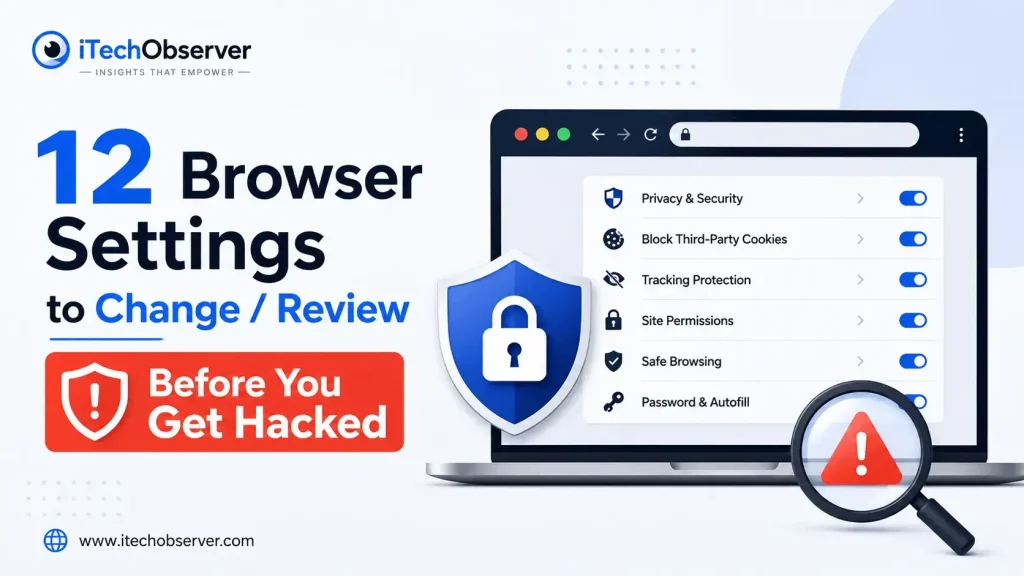
12 Browser Settings to Change and Review Before You Get Hacked
Your browser may be the most overlooked security tool on your computer.
You use it to access your email, bank account, shopping sites, social networks, cloud storage, work apps, and almost everything else online. Along the way, it stores site data, remembers permissions, runs extensions, manages passwords, and decides what information websites can access.
And most of those decisions happen quietly.
A website asks for your location. You click Allow.
A browser extension requests access to websites. You click Add extension.
A site wants notifications. You click Allow.
Months later, you’ve forgotten what you approved.
That’s where browser security starts to become a problem.
The solution isn’t to stop using Chrome, Firefox, Edge, or Safari. It’s to review the settings that control what websites and browser components are allowed to do.
Here are 12 browser settings worth changing or reviewing before a browser-level security or privacy problem catches you off guard.
Your Browser Is Part of Your Security Perimeter
When people think about online security, they usually focus on passwords, antivirus software, or two-factor authentication.
Your browser deserves the same attention.
Modern browsers can store or manage:
- Cookies and site data
- Login sessions
- Passwords and passkeys
- Autofill information
- Website permissions
- Location access
- Camera and microphone permissions
- Notifications
- Browser extensions
- Synced browser data
- Tracking and advertising preferences
Websites can also receive technical information about your browser and device.
Some tracking systems use combinations of browser characteristics to create a fingerprint that can distinguish one browser from another. Firefox, for example, includes built-in protections against fingerprinting and other tracking techniques.
The important point is simple:
Your browser settings determine how much access websites and third-party services get.
So let’s tighten them.
1. Block Third-Party Cookies
Start with cookies.
First-party cookies are created by the website you’re visiting. Third-party cookies come from other services embedded into that website, such as advertising or analytics providers.
Those third parties can potentially use cookies to recognize activity across different websites. Google specifically notes that third-party cookies can be used to personalize advertising and learn about actions taken on other sites.
What to change
In Chrome, go to:
Settings → Privacy and security → Third-party cookies
Review the available options and consider blocking third-party cookies.
Chrome also lets you create exceptions for individual websites if blocking them causes a site to malfunction.
Why it matters
You don’t need to block every cookie.
The goal is to limit unnecessary cross-site tracking while preserving the first-party cookies that make websites work.
If one trusted site breaks, create an exception for that site rather than opening the door to third-party cookies everywhere.
2. Turn On Stronger Tracking Protection
Your browser doesn’t have to accept every tracker a website tries to load.
Firefox’s Enhanced Tracking Protection automatically blocks various types of known trackers, and Firefox has continued expanding its tracking protections, including Total Cookie Protection in Standard mode.
Microsoft Edge offers Tracking prevention with different protection levels and allows you to create exceptions for sites that need them.
Recommended starting point
Firefox: Use Enhanced Tracking Protection; consider Strict if your sites continue working normally.
Edge: Start with Balanced and move to Strict if compatibility remains good.
Safari: Keep its built-in privacy protections enabled.
Chrome: Review its available privacy and tracking controls.
Why it matters
Tracking protection can prevent known trackers and unwanted third-party content from following your activity around the web.
And if a legitimate website breaks, modern browsers increasingly provide ways to create a targeted exception.
That’s much better than weakening protection across your entire browser.
3. Make Location Access Ask First
Your browser can give websites access to your location.
That’s useful when you’re using maps, food delivery, weather, ride-sharing, or other location-dependent services.
But there’s little reason for every website to know where you are.
What to change
Set location permissions to:
Ask before accessing
Then review websites that already have permission.
Remove access from sites that don’t need it.
Think before you click
When a website asks for location access, don’t automatically choose Allow.
Ask:
Does this website need my location for the feature I’m actually using?
If not, block it.
Why it matters
Location is one of the most sensitive permissions your browser can grant.
Making it opt-in keeps the decision in your hands.
4. Restrict Camera and Microphone Access
Camera and microphone permissions deserve even more scrutiny.
A video-conferencing site may need them.
An online recording tool may need them.
A random website asking for microphone access while you’re simply reading an article should make you stop.
What to change
Set both permissions to:
Ask before accessing
Then review websites that already have permission and remove unnecessary access.
The browser rule
If you’re not actively using a feature that requires your camera or microphone, don’t grant the permission.
This is a small setting with an outsized privacy benefit.
5. Review Browser Ad Privacy
Advertising personalization has increasingly moved into browser-level controls.
Chrome provides an Ad privacy area where users can review features such as:
- Ad topics
- Site-suggested ads
- Ad measurement
Chrome describes these as privacy-related controls for managing how personalization works in the browser.
What to change
In Chrome, check:
Settings → Privacy and security → Ad privacy
Review each setting and disable browser-based advertising features you don’t want.
Don’t expect ads to disappear
Turning these settings off doesn’t eliminate online advertising.
It simply changes what information Chrome makes available through these particular mechanisms.
That’s an important distinction.
6. Keep Fingerprinting Protection Enabled
Cookies aren’t the only way a website can recognize a browser.
Browser fingerprinting combines technical characteristics to create a potentially distinctive profile.
Those characteristics can include things such as:
- Screen configuration
- Operating system
- Language
- Fonts
- Browser configuration
- Extensions
- Hardware characteristics
Firefox provides built-in fingerprinting protection, and Mozilla recommends its normal Fingerprinting Protection mode for most users rather than enabling more aggressive advanced settings that can cause compatibility problems.
What to change
Use the browser’s built-in fingerprinting protection rather than immediately experimenting with obscure advanced configuration settings.
One important warning
More privacy controls don’t always mean more privacy.
If you heavily customize your browser and make it unusually distinctive, you can potentially make your configuration easier to distinguish.
For most people, the browser’s built-in protection is the better starting point.
7. Audit Your Website Permissions
This is one of the most important browser cleanups—and one of the easiest to forget.
Every time you grant a website access to a browser feature, that permission can remain until you remove it.
Over time, your browser can accumulate permissions from websites you haven’t visited in months.
Review access to:
- Location
- Camera
- Microphone
- Notifications
- Pop-ups
- Automatic downloads
- Device features
- Other specialized permissions
What to do
Remove permissions that are no longer necessary.
If you don’t remember why you granted a website access, that’s a good reason to review it.
The rule
A website should get the minimum browser access it needs—not everything it asks for.
8. Turn Off Unnecessary Website Notifications
Website notifications aren’t inherently dangerous.
But they’re easy to overuse.
You visit a website once, click Allow, and suddenly it can send notifications long after you’ve forgotten about the site.
What to change
Set website notifications to Ask.
Then remove existing permissions for:
- Sites you no longer visit
- Promotional websites
- Sites you don’t recognize
- Services whose notifications you don’t need
Why it matters
A clean notification list is a small but useful part of maintaining control over your browser.
And if a site repeatedly tries to convince you to enable notifications, that’s another reason to be cautious.
9. Review Browser Sync
Browser synchronization is convenient.
Sign into your browser and bookmarks, settings, tabs, passwords, and other information can follow you across devices.
But that convenience makes synchronization worth reviewing.
Check what is being synced
Depending on your browser, review options related to:
- Passwords
- Browsing history
- Open tabs
- Autofill
- Bookmarks
- Settings
- Other browser data
What to change
Don’t automatically synchronize everything just because the option exists.
Keep the categories you actually need.
If you’re using a shared or otherwise untrusted computer, be especially careful about signing into your browser account and synchronizing personal information.
Why it matters
Your browser should sync useful information—not become an automatic copy of your entire browsing life on every device.
10. Clear Unnecessary Site Data
Websites can store cookies, local storage, cached content, and other site data in your browser.
Some of this is useful.
Some of it is simply leftover information from websites you no longer use.
What to change
Review your browser’s site-data controls and consider clearing data from sites you no longer use.
Some browsers also allow you to delete site data when the browser closes.
Chrome provides controls for deleting stored site data and managing individual site exceptions.
The trade-off
Clearing site data can mean:
- More frequent logins
- Lost website preferences
- Reset site settings
- Less convenience
That’s normal.
The goal isn’t to delete everything constantly.
It’s to avoid keeping unnecessary site data forever.
11. Clean Up Saved Passwords and Autofill
Your browser can store much more than cookies.
It may also contain:
- Passwords
- Passkeys
- Names
- Addresses
- Phone numbers
- Email addresses
- Payment information
- Autofill entries
That makes your browser an important personal-data repository.
What to review
Open your browser’s password and autofill settings.
Look for:
- Old accounts
- Outdated addresses
- Expired payment details
- Unnecessary autofill information
- Credentials you no longer need
The goal
You don’t necessarily need to stop using browser password storage.
Instead:
Know what’s stored. Remove what you don’t need. Keep the browser protected.
A browser full of forgotten credentials and outdated personal information is harder to manage securely.
12. Stop Treating Incognito as a Security Shield
This is one of the biggest browser misconceptions.
Incognito and private browsing modes are useful—but they’re not invisibility modes.
Chrome’s current documentation describes Incognito as a way to keep browsing activity more private from other people using the same device. Chrome also blocks third-party cookies by default in Incognito.
But private browsing doesn’t mean websites can’t see information you provide to them.
Private browsing is useful when:
- You’re using a shared computer
- You don’t want normal history saved locally
- You want a temporary session
- You want to separate one browsing session from your normal browser data
What it doesn’t mean
Incognito ≠ anonymous.
It primarily changes what your browser retains locally.
That’s useful.
It’s just not the same thing as complete online anonymity.
Your Browser Extensions Deserve a Security Audit
There’s one browser component that doesn’t fit neatly into the 12 settings but absolutely deserves attention:
Extensions.
Extensions can request permissions that allow them to interact with websites or browser data.
That means every extension is another piece of software you are trusting.
Before installing an extension, ask:
- Who developed it?
- Is it still maintained?
- What permissions does it request?
- Does it actually need them?
- Is the developer reputable?
- Do you still need the extension?
Then clean house
If you haven’t used an extension in months, uninstall it.
A smaller extension list is easier to audit and easier to trust.
Don’t Max Out Every Privacy Setting
Here’s where many privacy guides go wrong.
They tell you to enable every possible restriction.
That’s not always practical.
Aggressive browser protections can sometimes cause:
- Broken logins
- Missing page elements
- Payment problems
- Broken embedded content
- CAPTCHA loops
- Sites forgetting preferences
Mozilla explicitly documents cases where stronger tracking protection can interfere with website functionality, while Edge provides exceptions for sites that need different tracking behavior.
The smarter approach
Use selective privacy.
Block unnecessary tracking.
Restrict sensitive permissions.
Remove unused site access.
Keep your extension list small.
Clear unnecessary data.
Then create exceptions only for trusted sites when necessary.
You want a browser that’s secure enough to protect you and functional enough to use every day.
Chrome vs. Firefox vs. Edge vs. Safari
There isn’t a single privacy setting that makes one browser universally superior.
| Browser | Notable Browser Controls | Good Starting Point |
|---|---|---|
| Firefox | Enhanced Tracking Protection, Total Cookie Protection, fingerprinting protection, site permissions | Use built-in tracking protection |
| Safari | Cross-site tracking protection, fingerprinting defenses, privacy controls | Keep built-in protections enabled |
| Edge | Tracking Prevention, site permissions, tracking exceptions | Start with Balanced |
| Chrome | Third-party cookie controls, Ad Privacy, site permissions, Safe Browsing | Review privacy controls |
Firefox currently documents Enhanced Tracking Protection and Total Cookie Protection as part of its privacy protections. (Mozilla Support)
Edge lets users view blocked trackers and create exceptions for individual sites when necessary. (Microsoft Support)
Chrome provides controls for third-party cookies, site data, advertising privacy, and private browsing. (Google Help)
The important thing isn’t simply which browser you use.
It’s whether you’ve actually reviewed the browser’s controls.
A 5-Minute Browser Security Check
Don’t want to work through all 12 settings right now?
Start with these.
Chrome
- Review third-party cookie settings
- Check Ad Privacy
- Set location to Ask
- Set camera and microphone to Ask
- Audit website permissions
- Review stored site data
- Remove unused extensions
Firefox
- Check Enhanced Tracking Protection
- Review site permissions
- Check tracking protection exceptions
- Review fingerprinting protection
- Remove unused extensions
Edge
- Make sure Tracking Prevention is enabled
- Start with Balanced
- Review site permissions
- Check tracking exceptions
- Remove unused extensions
Safari
- Keep built-in cross-site tracking protections enabled
- Review website permissions
- Check Privacy Report
- Review stored website data
- Remove extensions you no longer use
The Browser Settings You Should Revisit Regularly
Browser security isn’t a one-time setup.
Websites change.
Extensions get installed.
Permissions accumulate.
Browsers introduce new privacy controls.
So make a quick review part of your routine.
Every few months
Check:
- Website permissions
- Extensions
- Cookies and site data
- Notification permissions
- Browser sync
- Saved autofill information
- Tracking protection
Whenever you install an extension
Check its developer and permissions before you trust it.
Whenever a website asks for access
Pause before clicking Allow.
That one-second decision can be more useful than dozens of complicated privacy tweaks.
The Bottom Line
Your browser doesn’t need to become a fortress.
It just needs to stop giving websites more access than they actually need.
Start with the settings that have the biggest impact:
Third-party cookies. Tracking protection. Location. Camera. Microphone. Website permissions. Notifications. Browser sync. Site data. Autofill. Fingerprinting protection. Private browsing.
These settings won’t make you completely anonymous, and they can’t guarantee that you’ll never encounter a malicious website or browser-based attack.
What they can do is give you significantly more control over what your browser stores, what websites can access, and how much information is exposed during everyday browsing.
That’s the part most people overlook.
Your browser already has privacy and security controls. The real question is whether you’ve taken five minutes to use them.
Frequently Asked Questions
What browser settings should I change first?
Start with third-party cookie controls, tracking protection, website permissions, location access, camera and microphone permissions, and unused extensions.
Can browser settings stop me from getting hacked?
No. Browser settings can reduce certain forms of tracking, limit unnecessary permissions, and reduce browser-level exposure, but they cannot guarantee complete protection from every attack.
Should I block third-party cookies?
For users who prioritize privacy, blocking third-party cookies is a useful starting point. Some websites may depend on them, so site-specific exceptions can be useful.
Should I allow websites to access my location?
Only when the feature you’re using genuinely requires it. Keeping location access behind an Ask prompt gives you more control.
Should websites have access to my camera and microphone?
Only when you are using a feature that requires them. Otherwise, keep access restricted.
Does Incognito hide my browsing activity?
No. Incognito primarily limits what is stored locally on your device. It doesn’t make you anonymous to websites or the wider internet.
Are browser extensions safe?
Not automatically. Extensions can request significant browser permissions, so install them carefully and remove extensions you no longer need.
How often should I review browser settings?
Every few months is a practical schedule. Also review them whenever you install extensions, notice unusual browser behavior, or stop using websites that previously had permissions.
Which browser has the best privacy settings?
There isn’t one universal winner. Firefox, Safari, Edge, and Chrome all provide different browser-level privacy controls. The best choice depends on the protections you value and how you configure the browser.
Editor’s note: Browser interfaces and privacy features change frequently. Settings can also differ between desktop, mobile, operating-system versions, and managed devices. Check the current settings in your browser before following a specific menu path.


Hey there 👋 I’m Awais, the curious mind behind iTech Observer.
I’m a tech blogger who loves diving deep into AI and Cybersecurity, but my real passion is making those topics easy to understand — especially for small business owners trying to grow in a digital world.
Here on iTech Observer, I break down the latest tech trends, tools, and security tips into practical, real-world advice you can actually use. Whether you’re trying to secure your business website, understand how AI can boost productivity, or just want to stay updated on what’s next in tech — you’re in the right place.
I believe technology should empower, not overwhelm.
Let’s explore the innovations that can make your business stronger, smarter, and more secure.